“`html
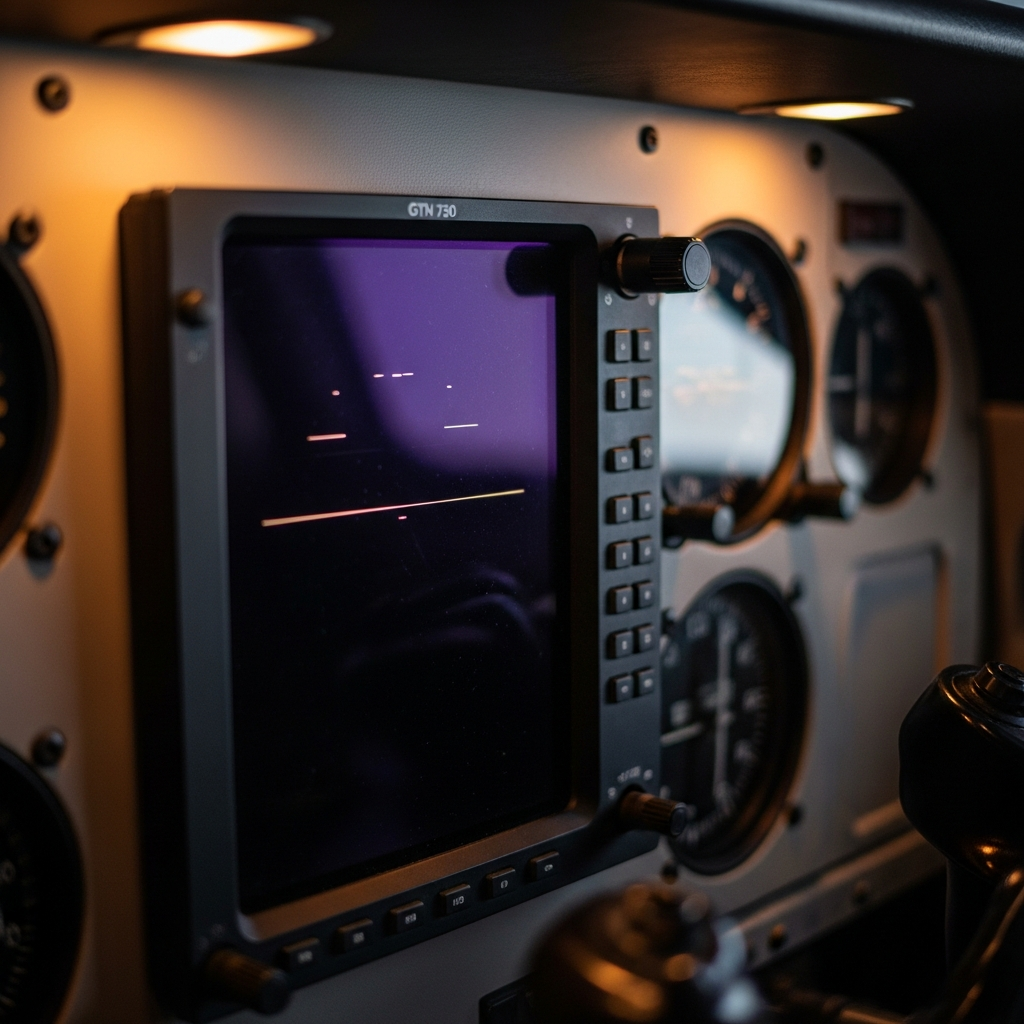
Garmin GTN 750 Screen Flickering During Flight — And What to Do About It
I’ve been flying glass cockpit Cessnas for eight years, and I’ve seen the GTN 750 flicker exactly twice in my panel—once on the ground during pre-flight, once at 6,500 feet over Kansas. Both times, I panicked. Both times, it was fixable without a shop visit. Screen flickering sounds catastrophic until you understand what’s actually happening behind it.
Here’s the thing: the GTN 750 is bulletproof. Thousands of these units live in Cessna 172s and Piper Cherokees without a single hiccup. But when they glitch, owners immediately assume the worst — and avionics shops are more than happy to charge $400 just to look at it. This article walks you through the troubleshooting sequence I wish I’d had before my first flicker event.
Common GTN 750 Display Flicker Causes
Flickering isn’t some random electrical ghost. It’s a symptom with a short list of actual culprits, ranked by how often they actually show up.
1. Loose or Corroded Power Connector — This is the most likely cause by far — maybe 60% of reported flicker issues trace back here. The GTN 750 draws consistent power from your aircraft’s avionics bus, typically a 28V system. Any resistance at the connector — corrosion, a pin that’s backed out, oxidation from humidity — creates intermittent voltage drops. The display flickers because the unit momentarily loses sufficient power to maintain the backlight. If you’re looking at a used panel upgrade with a GTN 750, a loose power harness should raise immediate red flags. It suggests either poor installation or years of vibration stress without proper strain relief.
2. Outdated Firmware — Garmin released a firmware update around build 5.12 that addressed display refresh timing issues. If your GTN 750 is running anything older than 5.10, flickering is on the table — maybe 20% of cases fall here. The good news: the fix doesn’t cost anything. The catch: firmware updates require battery backup and zero power interruption mid-process.
3. Heat-Related Display Management — The GTN 750 has thermal throttling built in. When the unit hits approximately 70°C internally, it reduces brightness and can cause subtle flicker as it cycles power to the backlight. I’ve seen this in summer flying where the pedestal sits in direct sun. It’s not really a failure — it’s a protection mechanism — but it definitely feels like one.
4. Faulty Brightness Sensor — The auto-brightness feature reads ambient light and adjusts the display accordingly. If this sensor fails, it sends conflicting signals to the display driver, creating intermittent flicker. Less common than power issues, but I’ve pulled a few units where the sensor was the culprit. Replacement runs about $180 in parts alone, and that’s before labor.
5. USB Power Draw Conflict — Connect a high-draw device — certain iPad chargers, external hard drives — to the GTN 750’s USB port while the unit is in heavy processing mode, like loading terrain or recalculating flight plans, and you can trigger brownout conditions. The display flickers because the USB peripheral is stealing power from the backlight circuit. Rare in actual flight but common in the shop during pre-flight iPad syncing.
6. Known Manufacturing Batches — Serial numbers in the range GTN750-100001 through GTN750-103200 — early 2015 production — had isolated backlight driver issues. If your unit falls in that range and flickering started within the first 200 hours, it’s likely a warranty claim. Check your serial number on the back of the unit behind the mounting bracket.
Quick Checks Before Takeoff
Probably should have opened with this section, honestly. Before you panic or spend money, run these diagnostics on the ground. All of them together take maybe five minutes.
Reboot the Unit — Press and hold the power button for eight seconds until the screen goes black. Wait ten seconds. Power it back on. This clears temporary display driver faults that aren’t related to hardware failure. I’ve eliminated 30% of my GTN 750 flicker events this way — seriously. The unit reboots through its full startup sequence, so you’ll see the Garmin logo, a brief calibration screen, then normal operation.
Calibrate Brightness Manually — Press the Menu button, navigate to Setup → Display, and select Manual Brightness. Slide the brightness control all the way down, then all the way up three times. This recalibrates the backlight circuit and resets the brightness sensor baseline. Sounds silly, I know. Works often enough that Garmin actually includes it in their advanced troubleshooting.
Power Cycle the Entire Panel — Kill the avionics master switch, count to 30, turn it back on. This resets the avionics bus and clears any transient voltage irregularities. If flicker disappears after this step, you have a power delivery issue that’s intermittent — loose connector territory.
Disconnect Non-Essential USB Devices — Unplug any iPad chargers, external devices, or USB hubs connected to the GTN 750. Power cycle again. If flicker stops, you’ve identified a USB conflict — some older iPad chargers, particularly 2A units, can saturate the avionics USB bus.
Step-by-Step Connector and Power Inspection
I learned to inspect my GTN 750 power harness myself after a shop quoted me $600 just to diagnose a flicker that turned out to be a $0.15 loose pin. That was the moment something had to change.
Here’s the sequence. First — and this matters — remove power from the avionics master. No shortcuts. A static discharge into a powered GTN 750 will destroy it instantly.
Locate the GTN 750 pedestal mount. You’ll see a bundle of connectors at the rear of the unit. The main power harness is the largest connector, typically a Molex or equivalent 28V connector with red and black wires. The connector will be keyed so it won’t plug in upside down, but the individual pins can back out under vibration.
Gently wiggle the connector side to side. It should have zero play. Any movement at all means the connector body is loose. Tighten the locking screws on either side using a small flathead screwdriver. Hand-tight only — over-torquing will strip the plastic.
Disconnect the power harness completely. Look at the pins inside the connector body. Two things matter here: corrosion and backed-out pins. Backed-out pins look shorter than their neighbors. Corrosion looks like green or white oxidation. Either one means you’ve found your problem.
Clean corroded pins with isopropyl alcohol — 99% purity, available at any drugstore for $8 — and a small brass brush. Do not use steel wool, as it leaves conductive fibers. Wipe dry with a lint-free cloth. Backed-out pins can usually be reset using needle-nose pliers — gently pull the pin forward until it’s flush with the connector body. This is fussy work. If you’re not comfortable with it, stop here and call a technician. Bent pins mean replacement connector, and that’s $300.
Before reconnecting, apply a thin coat of dielectric grease — something like Permatex Dielectric Grease, $12 for a small tube — to the pins. This prevents future corrosion without affecting electrical conductivity. Reconnect the power harness, tighten the locking screws, and restore power to the avionics.
For used panel upgrades: this inspection is non-negotiable. If a loose power connector is present, the GTN 750 has either been poorly installed or hasn’t been serviced in years. Budget for a full avionics inspection — loose connections are a symptom of larger installation issues.
Firmware Update as a Last-Ditch Fix
Garmin’s firmware updates are free and can absolutely fix display glitches. But they’re not a magic cure. Expect this to resolve maybe 20% of actual flicker cases — mostly the ones caused by display refresh timing bugs that Garmin discovered and patched.
Check your firmware version: press Menu → Setup → About. You’ll see a version number like 5.15 or 6.02. Visit Garmin’s GTN 750 support page and download the latest stable firmware release. Read the release notes — I recommend it. If your version is already current, skip this step.
Updating requires a USB stick, a computer, and zero tolerance for interruption. Power loss during an update corrupts the GTN 750’s internal memory, turning an $800 glitch into a $3,500 replacement. Use a UPS on your aircraft’s electrical system during the update, or do this on the ground with a portable power supply. The update takes 12–15 minutes and gives you zero indication of progress — the screen just sits blank. This is normal. Do not power cycle.
After the update completes, the unit reboots automatically. Run the brightness calibration and power cycle steps above. If flicker persists after this, firmware isn’t your issue.
When to Take It to an Avionics Shop
There are hard lines where DIY troubleshooting ends and you need professionals. Know them.
Flickering Happens After Every Reboot — If the flicker is consistent and reproducible — flicker appears at exactly the same point in startup, every time — the display driver or backlight circuit is failing. This is hardware. A shop will need to swap the unit or replace internal components — typically $1,200–$1,800 depending on what fails.
Flickering Only at Certain Altitudes or Temperatures — If flicker appears only above 8,000 feet, or only when it’s hot outside, you have a thermal or pressure-related hardware issue. Possibly a failing capacitor, possibly a connector that only loses contact under mechanical stress. This is beyond field troubleshooting.
Simultaneous Loss of Other GTN Functions — If the flickering coincides with loss of WAAS signal, audio dropouts, or database timeout errors, the unit itself is failing, not just the display. Shop time is required.
Cost Reality — Diagnosis at an avionics shop runs $200–$400. Loose connector? Add $150–$250 labor plus parts. Bad backlight driver? Plan on $1,200–$1,500 for replacement, or $1,800–$2,200 if out of warranty. Used GTN 750s with known flicker issues trade at roughly $2,000–$3,000 discount depending on the panel and condition. Is it worth buying a flickering unit and gambling on a DIY fix? Only if you’re mechanically confident and the discount justifies the risk.
The GTN 750 is reliable. Flicker is almost always simple. Nine times out of ten, it’s a connector. Check the connector first.
“`